Recover lost photos before they’re gone forever.
One tap on “delete” and a precious memory disappears — but your photos may still be recoverable if you act fast.
The best free photo recovery apps for 2026 can restore deleted images from any Android or iPhone device.
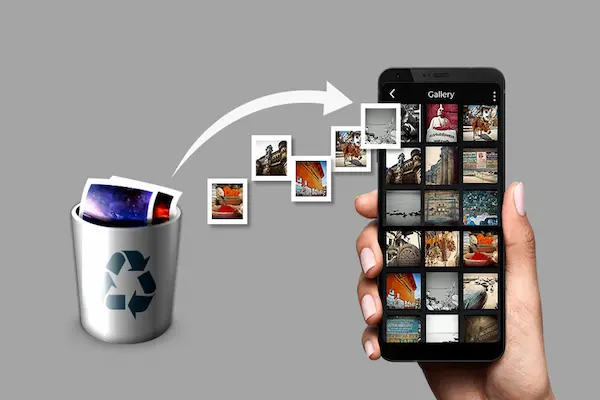
When you delete a photo from your Android or iPhone, the file isn’t immediately gone for good.
The storage space is simply marked as available — and the image data stays on the device until it’s overwritten by new files.
That’s why acting quickly is the number one rule of photo recovery: stop using your phone the moment you realize photos are missing.
Every new photo taken, every app installed, every video downloaded increases the risk that your deleted images will be permanently overwritten.
The good news? In 2026, free photo recovery apps have become more powerful than ever. Whether you need android photo recovery, iphone photo recovery software, or a solution for an SD card or memory card, there’s a free tool available for your situation.
Below you’ll find the five best free apps available today — including where to download each one and a step-by-step guide to get your photos back.
What Makes a Good Photo Recovery App?
Before downloading the first app you find, it’s worth knowing what separates a reliable tool from a low-quality one.
A good photo recovery software should scan both internal storage and SD cards, support common formats like JPG, PNG, GIF, HEIF, and RAW, and let you preview images before you restore them.
The ability to filter results by date and file size is also a major time-saver — especially when the app returns hundreds of recoverable images.
Privacy matters too. Look for apps that operate in read-only mode during scanning, meaning they don’t modify your data during the process.
The five apps below meet all of these criteria and are free to download on Google Play and the App Store.
1. DiskDigger — Best Free Photo Recovery App for Android
DiskDigger is consistently rated as the most thorough free photo recovery app for Android in 2026, with millions of downloads and a 4.38-star average rating on Google Play.
It offers two scan modes:
- Basic Scan — works on non-rooted devices, searches caches, thumbnails, and accessible storage
- Full Scan — available on rooted devices, scans every sector of your device’s memory for maximum recovery
After the scan, you can preview each image before restoring and upload recovered files directly to Google Drive, Dropbox, or your email.
DiskDigger also includes a “Clean up” button to permanently delete files you no longer need and a “Wipe free space” option to prevent future recovery of sensitive data.
💡 Pro tip: The sooner you run DiskDigger after a deletion, the more photos you’ll recover. New data can permanently overwrite deleted files.
How to Download DiskDigger (Step by Step)
- Open Google Play Store on your Android device
- Search for “DiskDigger photo recovery”
- Tap Install and wait for the download to finish
- Open the app and tap Start Basic Photo Scan
- Select the photos you want to restore and tap Recover
Note: DiskDigger is currently Android-only. iPhone users should see the options below.
2. Dumpster — Recover Lost Photos Instantly
Dumpster is the best choice for users who want to recover lost photos without running a deep scan — because it works as a recycle bin for your Android or iPhone.
With over 50 million downloads, Dumpster automatically saves deleted photos and videos before they’re permanently removed, so you can restore them with a single tap.
This makes it the fastest photo recovery solution available — no scanning, no waiting, just instant recovery from the app’s protected storage.
It also works as a free photo recovery app for iPhone users, which makes it rare among photo recovery tools that typically focus on Android only.
How to Download Dumpster (Step by Step)
- Open Google Play or the App Store on your device
- Search for “Dumpster photo video restore”
- Tap Install (it’s free)
- Open Dumpster and enable it as your device’s recycle bin
- Go to My Files inside the app to view and restore deleted photos
3. EaseUS MobiSaver — Best for Android and iPhone Photo Recovery
EaseUS MobiSaver is one of the most recognized names in data recovery software, and its free mobile app brings that same reliability to Android and iPhone devices.
It recovers not just photos, but also videos, contacts, and messages — making it one of the most complete free recovery tools available in 2026.
For Google Photos recovery, EaseUS can scan your device and retrieve images that were synced to Google Photos but later deleted from the app.
On iPhone, EaseUS MobiSaver works with iCloud and local backups to retrieve deleted images without resetting your device — a key advantage over many competing tools.
The free version allows recovering one file at a time. The premium version removes that limit and supports bulk restoration.
How to Download EaseUS MobiSaver (Step by Step)
- Open Google Play or the App Store
- Search for “EaseUS MobiSaver”
- Tap Install and open the app
- Select Start to scan your device
- Preview your deleted photos and tap Recover to restore
Recover Lost Photos: What to Do Right Now
If you just deleted a photo and haven’t installed any recovery app yet, follow these steps immediately:
- Stop using your phone — don’t take new photos, don’t download apps, don’t record videos
- Check your recently deleted folder — both Google Photos and iPhone Photos have a 30-day recovery window for recently deleted images
- Check Google Photos restore — go to Library > Trash in the Google Photos app
- Download one of the apps above and run a scan immediately
- Preview and restore — select the photos you want and save them to a safe location
This workflow works for both everyday users and more technical scenarios — whether you’re dealing with a broken memory card recovery, an accidental format, or a photo vault recovery situation.
4. Dr.Fone — iPhone and Android Photo Recovery
Dr.Fone by Wondershare is the go-to option for users who need best iPhone data recovery software in 2026 — especially those who want to recover deleted photos from an iCloud or iTunes backup without resetting the entire device.
It supports selective recovery: instead of restoring everything from a backup, you choose exactly which photos to retrieve.
Dr.Fone also recovers photos from third-party apps like WhatsApp and Messenger — a feature not available in most free photo recovery tools.
The app includes a preview feature so you can confirm exactly what you’re restoring before committing.
While the full version requires a paid license, the free scan lets you see all recoverable photos before deciding whether to proceed.
How to Download Dr.Fone (Step by Step)
- Open Google Play or the App Store
- Search for “Dr.Fone Phone Manager”
- Tap Install and launch the app
- Select Data Recovery from the main menu
- Choose your recovery source (device, iCloud, or iTunes backup) and tap Start Scan
- Select the photos you want to restore and tap Recover to Device
5. Photo Recovery & File Manager — Best for Recent Deletions
Photo Recovery & File Manager is the best choice if your photos were deleted recently and you need a fast, straightforward recovery.
Its algorithm is specifically optimized for recently deleted photos, making it quicker than deep-scan tools like DiskDigger for this use case.
Results are organized by folder, making it easy to find the specific images you’re looking for — especially useful when scanning large SD cards or memory cards.
You can filter results by file size, preview before restoring, and manage your recovered files directly inside the app with the built-in file manager.
It’s one of the best sd card recovery software free options available on Google Play, with consistently high ratings for speed and reliability.
How to Download Photo Recovery & File Manager (Step by Step)
- Open Google Play Store on your Android device
- Search for “Photo Recovery File Manager”
- Tap Install and open the app
- Select your storage target (internal memory or SD card)
- Tap Scan Now, preview results, and tap Restore
Which Recover Lost Photos App Should You Choose?
The right app depends on your situation:
- Android user, non-rooted device: Start with DiskDigger (basic scan) or Photo Recovery & File Manager
- iPhone user without a backup: Dr.Fone or EaseUS MobiSaver are your best options
- Want to prevent future loss: Install Dumpster now as your Android or iPhone recycle bin
- Need SD card or memory card recovery: DiskDigger and Photo Recovery & File Manager both handle SD card scanning well
- Deleted from Google Photos: EaseUS MobiSaver supports Google Photos restore workflows
All five apps are free to download and handle the most common photo loss scenarios without requiring any payment upfront.
The most important thing is to act fast — the longer you wait, the higher the risk that new data will overwrite the deleted files permanently.
Download one of the apps above, run a scan, and recover your photos before they’re gone for good.